
Brave Birds
Prologue
Hi! Before you start reading the documentation, we want to say a huge thank you for purchasing our product. We always try to make quality products and strive for the highest quality, so this documentation contains all the most important details on how to customize and work with the project.
You can use the navigation on the left to conveniently navigate through the documentation to the desired section.
Before the start
This game was created on the Construct 3 game engine developed by Scirra.
The Construct 3 game engine is convenient because it is very easy and simple to develop your own game without using coding. Also you can change game aasets at any time.
If you start working on this finished game, it implies that you already have at least a basic knowledge of working with the game engine. If you are a beginner, we strongly recommend you to read the Construct 3 Guided Tour, as well as to study the videos on the YouTube channel of the engine developers Scirra.
We will also attach other interesting tutorials on the Construct 3 game engine at the end of this documentation.
Open Construct 3
Construct 3 is a powerful game engine. Its main advantage is that it doesnt need to be installed on your device and is able to work directly from your browser, allowing you to work on your project from any device by simply logging in with your account.
Just open the editor here and register and log in with your account.
Please note that the free version of Construct 3 has some limitations, to avoid them you need to purchase a subscription. You can find more information about prices on the oficial website.
Open the C3P file
Files in .c3p format allow you to open a game project.
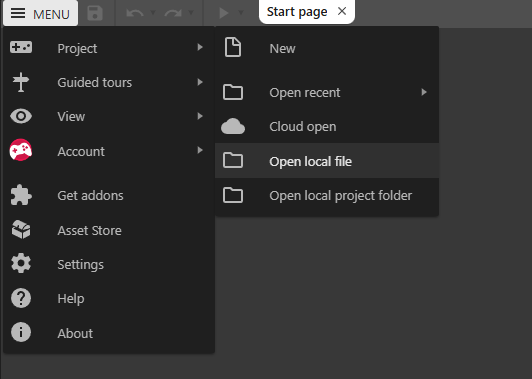
To open a project, select the Construct 3 «Menu — Project — Open local file» and open the .c3p file in directory «Brave Birds/Source/Brave Birds.c3p».
How to reskin the game
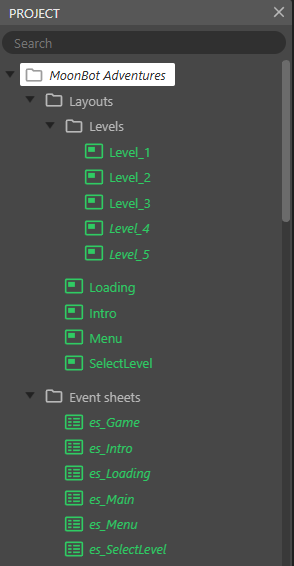
The most basic elements of the game are game layouts. Select the desired layout and press «F5» or the «Play» button to start the preview of the game.
When previewing the game, it will launch exactly the layout that is currently selected.
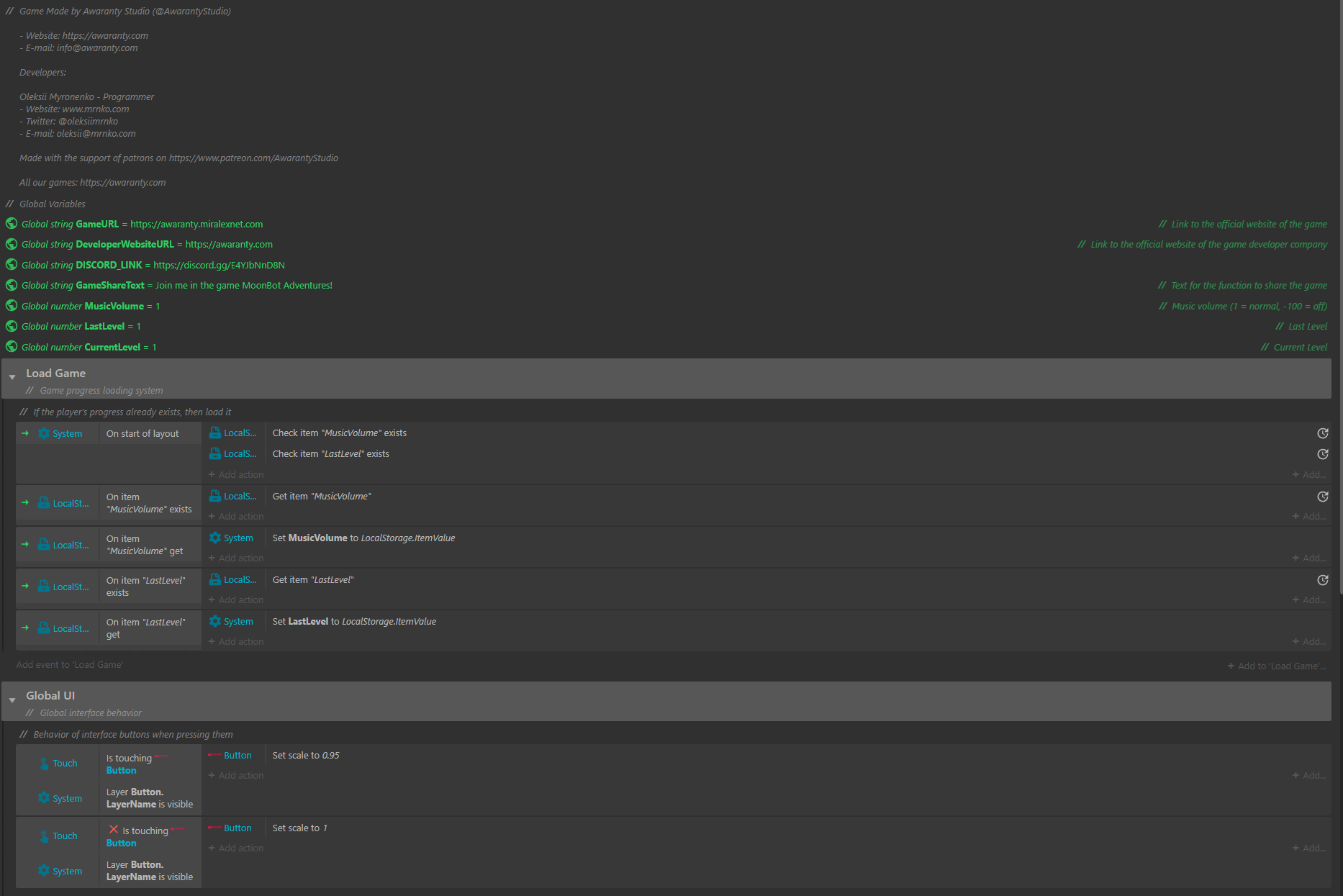
Event Sheets — this is where the whole logic of the game takes place. These blocks are visual programming. Using them you can change any parameter of the project, change the characteristics of enemies, their behavior, etc.
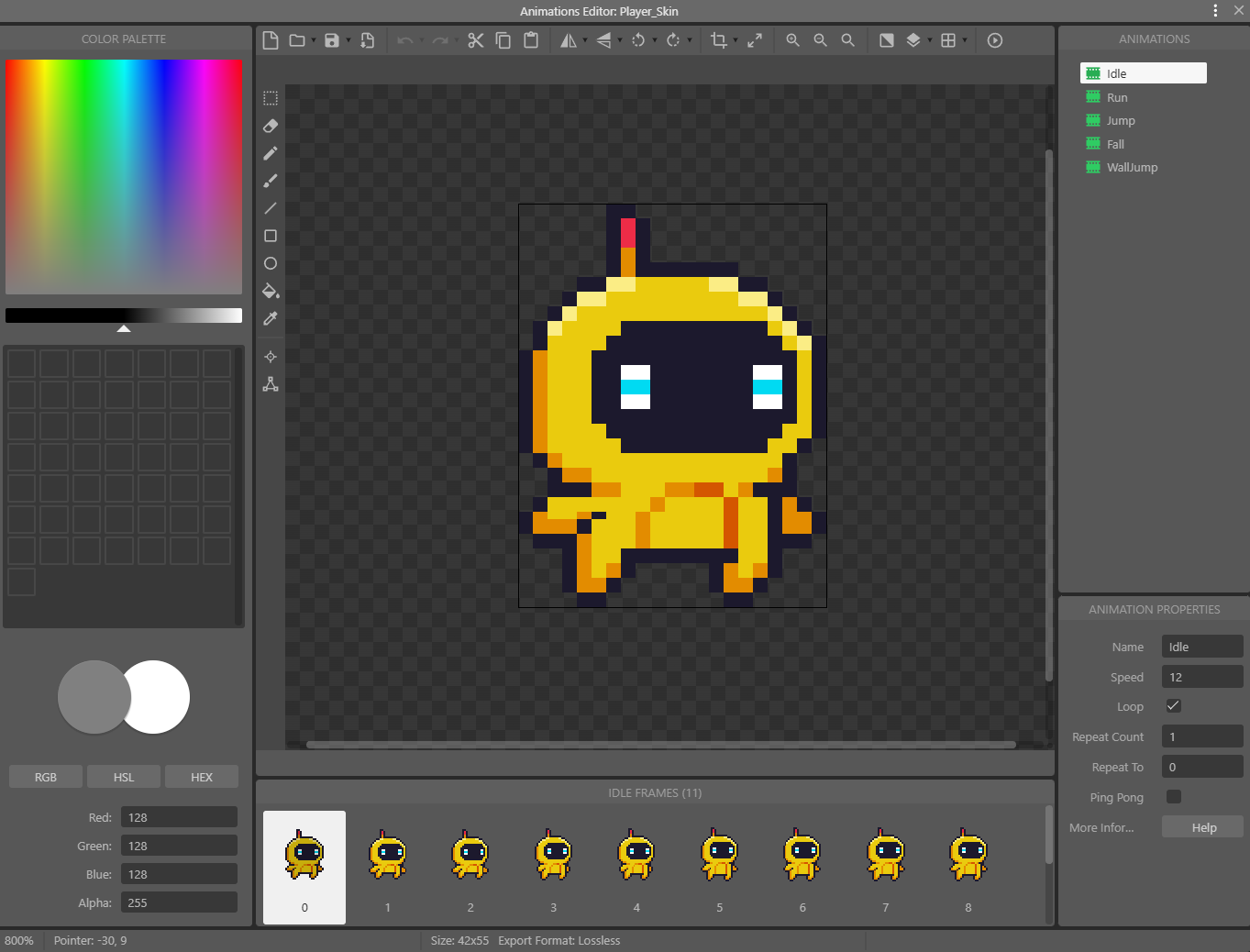
In order to change any sprite in the project, you need to open Construct 3 Sprites Editor.
Open sprite in editor: Double click on sprites in «Projects» folder. Open new sprite to replace old. Note: make sure that new sprite have equal size, orientation and hot-spot like old sprite.
Export to HTML5
Export to Android
Support from Awaranty Studio
For any questions about our products, you can contact 24/7 support via email support@awaranty.com